> For the complete documentation index, see [llms.txt](https://basholabs.gitbook.io/docs/llms.txt). Markdown versions of documentation pages are available by appending `.md` to page URLs; this page is available as [Markdown](https://basholabs.gitbook.io/docs/bashobot/editor.md).

# Setting Up Bashobot

Setting up **BashoBot** on both Telegram and Discord is quick and simple. Follow the steps below to get started:

**Step 1:** Accessing the Bot

<figure><img src="/files/iTHtmmwg8o3JFH6suWNp" alt=""><figcaption><p>#start channel on discord</p></figcaption></figure>

<figure><img src="/files/VPKVzu1KSlvEEiSSukCy" alt=""><figcaption><p>Telegram bot /start</p></figcaption></figure>

<figure><img src="/files/bUMEjDSa4JulxkYGUtnK" alt=""><figcaption><p>Discord bot commands</p></figcaption></figure>

**Step 2:** Creating wallets

Start by creating a wallet using the appropriate command!

<figure><img src="/files/ZXVLL3rNWVHo3lQEbhsr" alt=""><figcaption><p>Telegram bot create wallet</p></figcaption></figure>

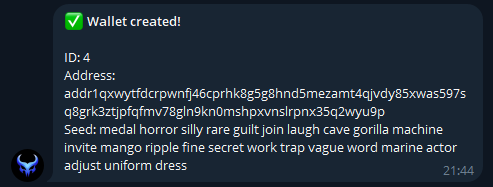
<figure><img src="/files/rmlXDNv9rP8u58aA8FnK" alt=""><figcaption><p>Telegram bot confirmation message</p></figcaption></figure>

<figure><img src="/files/JNw5nVWy82VbSVnmvfro" alt=""><figcaption><p>Discord bot create wallet</p></figcaption></figure>

<figure><img src="/files/5s29J5jLHWE5Xidan49Y" alt=""><figcaption><p>Discord bot confirmation message</p></figcaption></figure>